Layouts
Let people switch the index page between several tables or your own partial views
Introduction
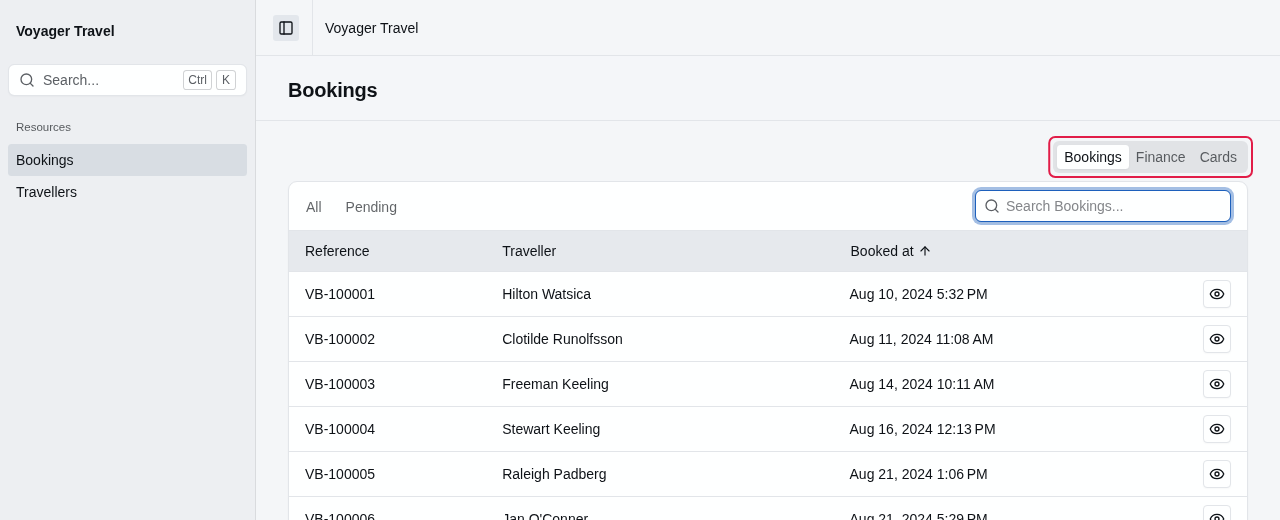
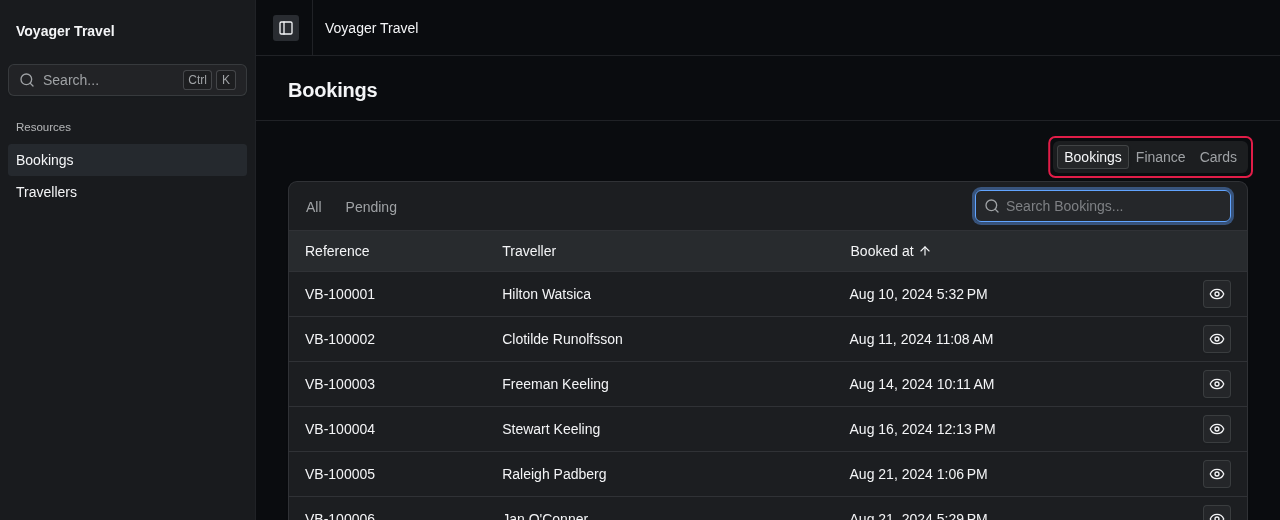
By default, the index page lists a resource's records in a table. You can add additional layouts instead, such as a second table with other columns, or a partial view of your own that displays the records as cards. Users can switch between the layouts with a layout switcher.
Adding layouts
To add layouts, call the overload of Index() that takes two callbacks. The first callback configures the settings every layout shares, such as the search and the scopes. The second callback adds the layouts.
The example below adds a Bookings table, a Finance table and a Cards partial view to the bookings index page:
resource.Index(
    index =>
    {
        // Settings shared by every layout
        index.EnableSearch(term => booking => booking.Reference.Contains(term));
        index.EnableScopes(scopes =>
        {
            scopes.Add("all", "All");
            scopes.Add("pending", "Pending", booking => booking.Status == BookingStatus.Pending);
        });
    },
    layouts =>
    {
        layouts.AddTable("bookings", table =>
        {
            table.Columns(columns =>
            {
                columns.Add(booking => booking.Reference);
                columns.Add(booking => booking.Traveller);
                columns.Add(booking => booking.BookedAt, column => column.Sortable());
            });
            table.DefaultSortBy(booking => booking.BookedAt);
            table.EnablePaging();
        });
        layouts.AddTable("finance", table =>
        {
            table.Columns(columns =>
            {
                columns.Add(booking => booking.Reference);
                columns.Add(booking => booking.Status);
                columns.Add(booking => booking.TotalAmount, column => column.Sortable());
            });
            table.DefaultSortByDescending(booking => booking.TotalAmount);
            table.EnablePaging(paging => paging.PageSize = 50);
        });
        layouts.AddPartial("cards", "_BookingCards");
    });
The first argument of AddTable() and AddPartial() is the layout's key. StellarAdmin adds the key of the selected layout to the index page's URL, for example /stellaradmin/bookings?layout=finance, so a link to the page opens that layout.
The first layout you add is the default, and the layout switcher lists the layouts in the order you add them. The layout switcher is not displayed when you only have a single layout.
The search and the scopes apply to every layout, and when users switch layouts, they keep their search and the selected scope.
Columns, sorting, paging and row details are settings of a table. When adding multiple layouts, these will not ne available to call on the first callback. You must configure them on each table instead.
Setting the title and icon of a layout
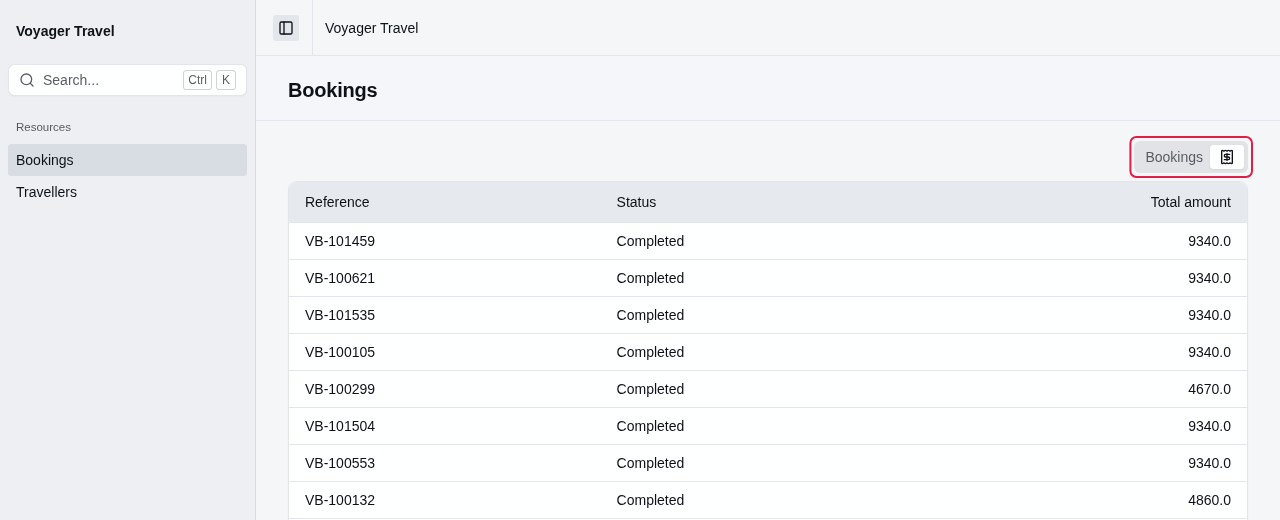
Each layout has a segment in the switcher. To configure the segment, set the following properties in the layout's callback:
| Property | Description |
|---|---|
Title | The layout's name, which the switcher displays as a tooltip, and which screen readers announce. It defaults to the key written as a sentence, for example "Finance" for the "finance" key. |
Icon | The name of a Lucide icon that the switcher displays in the segment. When you don't set an icon, the switcher displays the title instead. |
The example below gives the Finance table a title and a receipt icon:
resource.Index(
    index => { },
    layouts =>
    {
        layouts.AddTable("finance", table =>
        {
            table.Title = "Finance";
            table.Icon = "receipt";
            table.Columns(columns => columns.Add(booking => booking.TotalAmount));
        });
    });
Adding tables
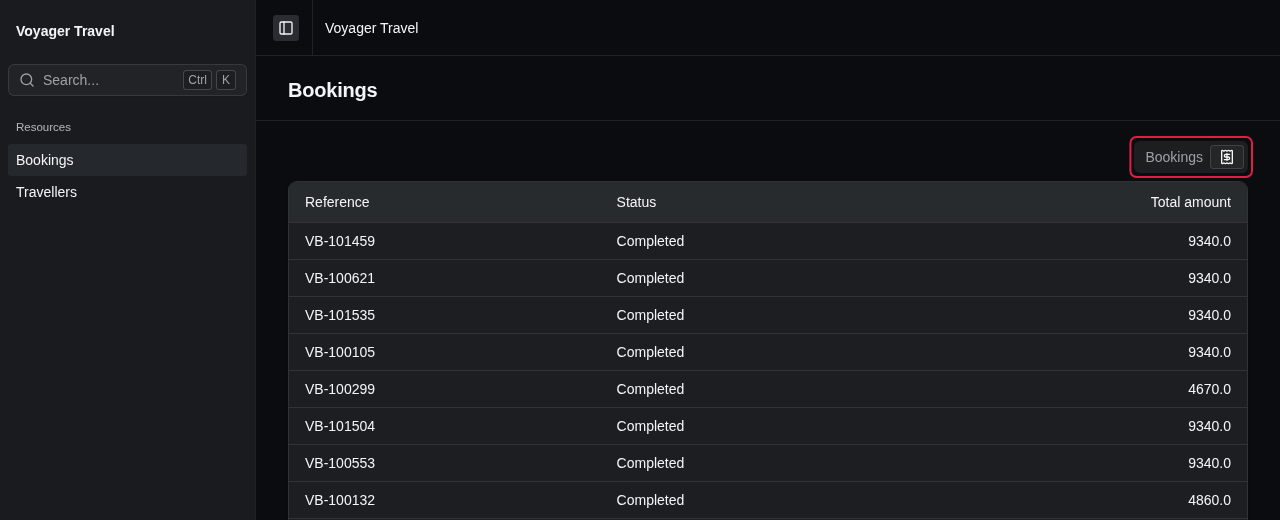
A table layout displays the records in a grid, like the index page of a resource with a single layout. In the callback of AddTable(), you configure the table with the same methods as in Index():
Columns()adds the columns.DefaultSortBy()andDefaultSortByDescending()set the default sort.EnablePaging()splits the table into pages.EnableRowDetails()adds row details.
Each table has its own columns, sort, paging and row details. Sorting or paging one table doesn't change the others.
Inline editing only applies to the first table of the resource's records.
Hiding row actions
Each table displays the view, edit and delete actions you have enabled on the resource. To hide an action in one table, call RowActions() and set the action's property to false. The example below hides the delete action in the Finance table:
layouts.AddTable("finance", table =>
{
    table.Columns(columns => columns.Add(booking => booking.TotalAmount));
    table.RowActions(actions => actions.Delete = false);
});
You can set View, Edit and Delete. Setting an action to true doesn't display an action that isn't enabled on the resource.
Adding partial views
To display the records in a way of your own, such as cards, add a partial view layout by calling AddPartial() with the layout's key and the name of the partial view:
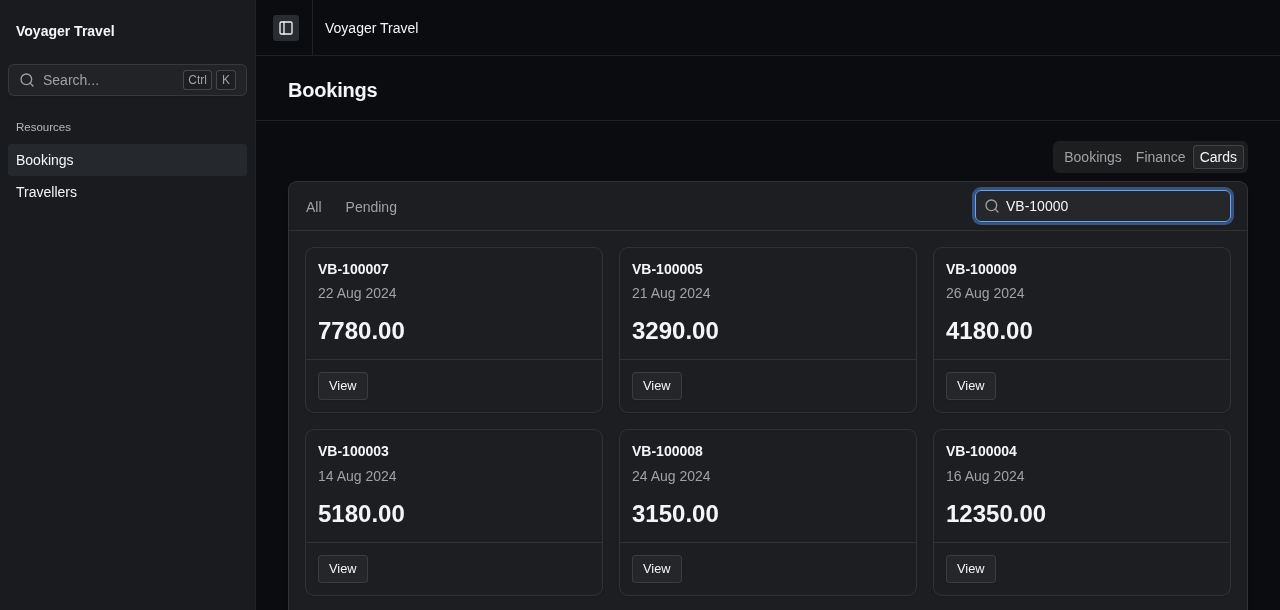
layouts.AddPartial("cards", "_BookingCards");The partial view's model is a ResourceLayoutModel<TItem>, where TItem is the resource's type. A partial view receives every record that the search and the selected scope select, because a partial view layout has no paging.
The _BookingCards partial view below displays a card for each booking, with its total amount and a link to its view page:
@using StellarAdmin.Resources
@model ResourceLayoutModel<Booking>

<div class="grid grid-cols-1 gap-4 sm:grid-cols-2 xl:grid-cols-3">
    @foreach (var booking in Model.Items)
    {
        <sa-card size="CardSize.Small">
            <sa-card-header>
                <sa-card-title>@booking.Reference</sa-card-title>
                <sa-card-description>@booking.BookedAt.ToString("d MMM yyyy")</sa-card-description>
            </sa-card-header>
            <sa-card-content>
                <p class="text-2xl font-semibold tabular-nums">@booking.TotalAmount.ToString("0.00")</p>
            </sa-card-content>
            @if (Model.GetViewUrl(booking) is { } viewUrl)
            {
                <sa-card-footer>
                    <sa-link-button href="@viewUrl" variant="ButtonVariant.Outline" size="ButtonSize.Small">View</sa-link-button>
                </sa-card-footer>
            }
        </sa-card>
    }
</div>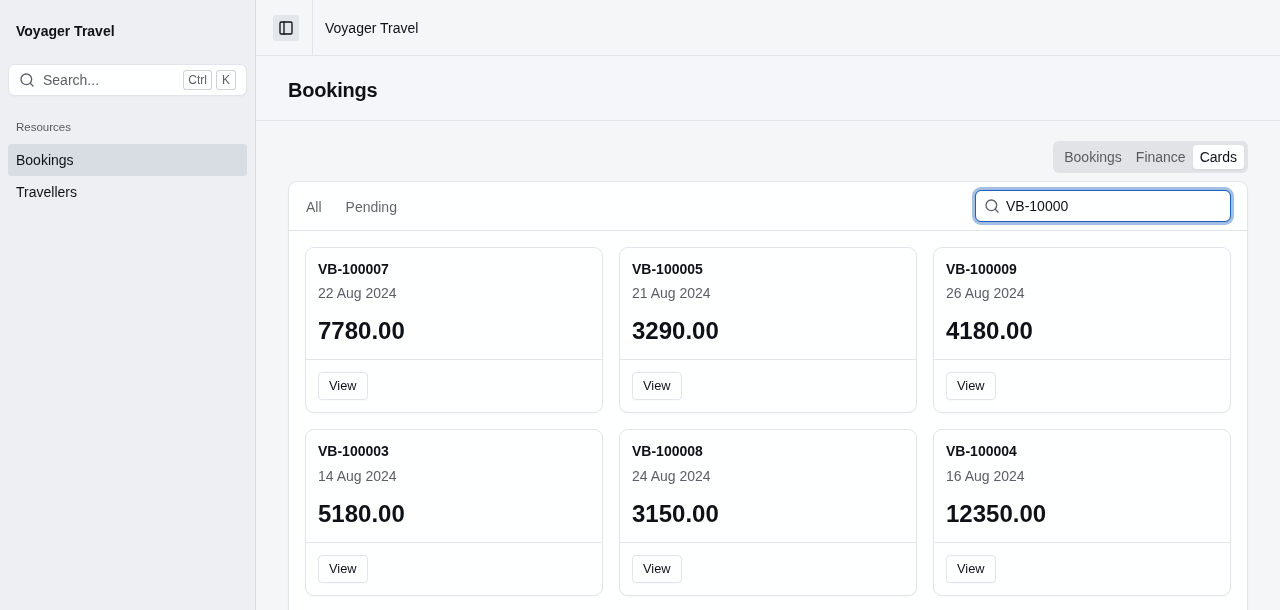
Place the partial view in Areas/StellarAdmin/Views/{resourceSlug}/, for example Areas/StellarAdmin/Views/bookings/, or in Areas/StellarAdmin/Views/Shared/.
ResourceLayoutModel<TItem> has the following members:
| Member | Description |
|---|---|
Items | The records to display. |
Request | The request for the records, with the layout's key in Layout, and the applied search and scope in Search and Scope. |
GetViewUrl(item) | The URL of the record's view page, or null when the resource has no view page. |
GetEditUrl(item) | The URL of the record's edit page, or null when the resource has no edit page. |
GetIndexUrl(values) | The URL of the index page with the current layout, search and scope. The optional values object adds or replaces values in the URL. |
To link to another layout, pass its key to GetIndexUrl(). The link keeps the search and the selected scope:
<a href="@Model.GetIndexUrl(new { layout = "finance" })">Compare the totals</a>If you use the StellarAdmin.UI Tag Helpers like the partial view above, be sure to add a _ViewImports.cshtml file that registers the StellarAdmin Tag Helpers, otherwise the <sa-card> will render as plain text.
Ignoring the search or the scopes
A layout may not need the search or the scopes, such as a summary of every booking. To hide them while the layout is selected, call IgnoreSearch() or IgnoreScopes() in the layout's callback:
layouts.AddPartial("summary", "_BookingSummary", summary =>
{
    summary.IgnoreSearch();
    summary.IgnoreScopes();
});
StellarAdmin doesn't apply an ignored search or scope to the layout's records. The search and the selected scope stay in the URL, so they apply again when people switch back to another layout.
Loading other data
A layout can also display data that isn't the resource's records, such as the revenue per destination calculated from the bookings. See loading layout data.