Data layouts
Let users switch the data layout on the index page between tables, cards or your own partial views
Introduction
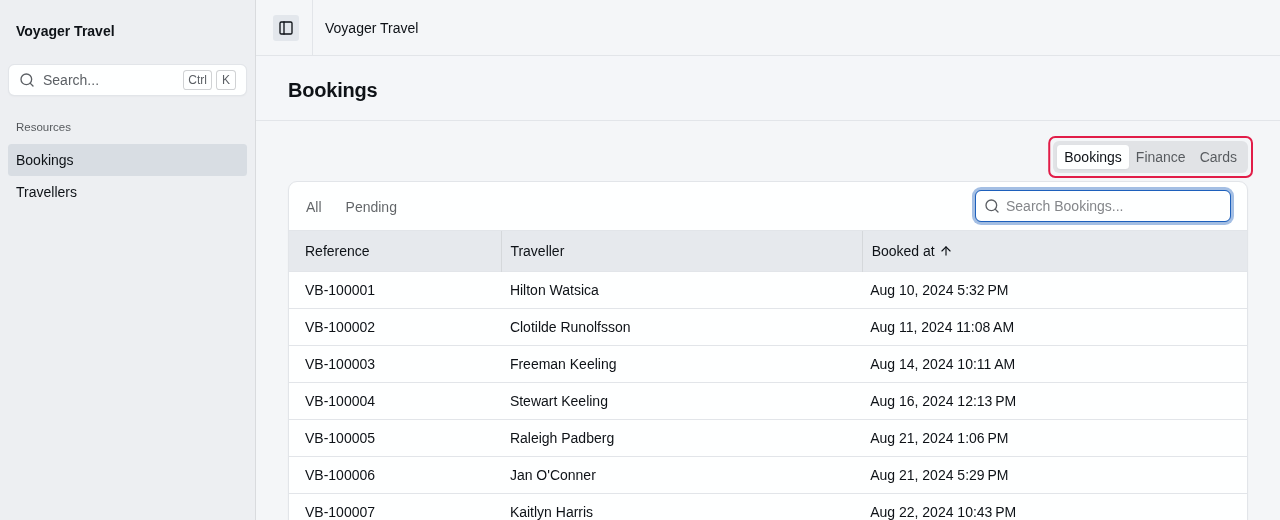
The index page lists a resource's records in one or more data layouts: tables, cards or partial views. Users can switch between the data layouts with a switcher.
Adding data layouts
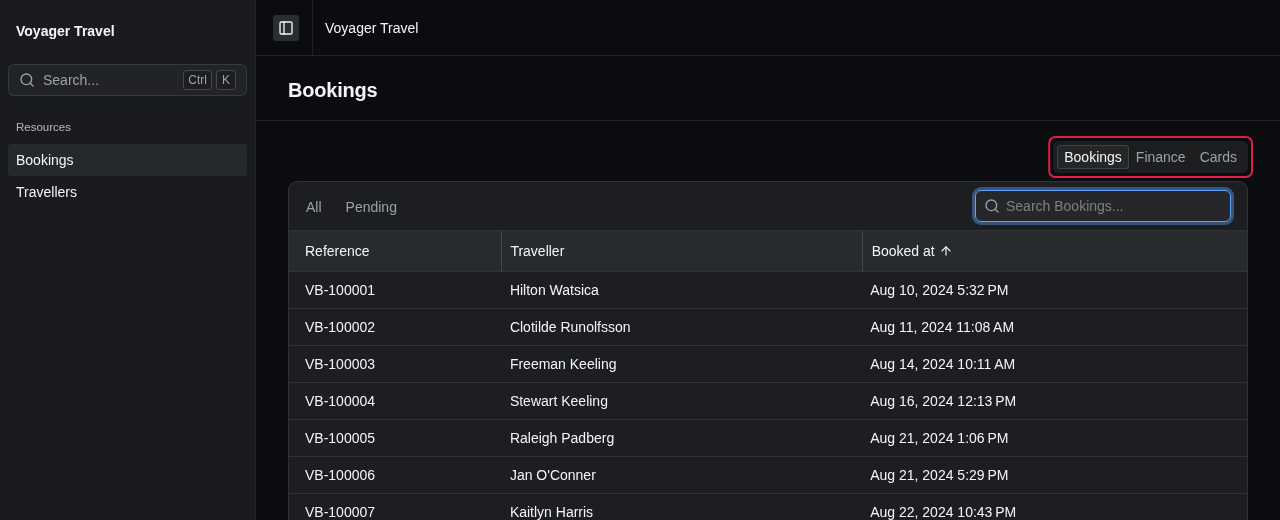
To add data layouts, call AddTable(), AddCards() or AddPartial() on the index page builder. The example below adds a Bookings table, a Finance table and Cards to the bookings index page:
resource.Index(index =>
{
    // Settings shared by every data layout
    index.EnableSearch(term => booking => booking.Reference.Contains(term));
    index.EnableScopes(scopes =>
    {
        scopes.Add("all", "All");
        scopes.Add("pending", "Pending", booking => booking.Status == BookingStatus.Pending);
    });

    index.AddTable("bookings", table =>
    {
        table.Columns(columns =>
        {
            columns.Add(booking => booking.Reference);
            columns.Add(booking => booking.Traveller);
            columns.Add(booking => booking.BookedAt, column => column.Sortable());
        });
        table.DefaultSortBy(booking => booking.BookedAt);
        table.EnablePaging();
    });
    index.AddTable("finance", table =>
    {
        table.Columns(columns =>
        {
            columns.Add(booking => booking.Reference);
            columns.Add(booking => booking.Status);
            columns.Add(booking => booking.TotalAmount, column =>
                column.Sortable().UseDisplay<NumberDisplay>(number => number.Format = "C0"));
        });
        table.DefaultSortByDescending(booking => booking.TotalAmount);
        table.EnablePaging(paging => paging.PageSize = 50);
    });
    index.AddCards("cards", cards => cards.Card(card =>
    {
        card.Title(booking => booking.Reference);
        card.Badge(booking => booking.Status);
        card.Stats(stats =>
        {
            stats.Add(booking => booking.BookedAt);
            stats.Add(booking => booking.TotalAmount);
        });
    }));
});
The first argument of the various Add[Layout]() methods is the layout's key. Each data layout on the index page must have a unique key, which is used to identify the layout. The first data layout you add is the default, and the switcher lists the data layouts in the order you add them. The switcher is not displayed when you only have a single data layout.
Search and the scopes apply to all layouts, and when users switch layouts, they keep their search and the selected scope. You can opt out of search an scopes on a per-layout basis.
Each layout has its own sorting and paging. Sorting or paging in one layout does not affect other layouts. You can find out how to configure each kind of data layout on the Tables, Cards and Partial views pages.
Setting the title and icon of a data layout
Each data layout has a segment in the switcher. To configure the segment, set the following properties in the data layout builder:
| Property | Description |
|---|---|
Title | The data layout's name, which the switcher displays as a tooltip, and which screen readers announce. It defaults to the key written as a sentence, for example "Finance" for the "finance" key. |
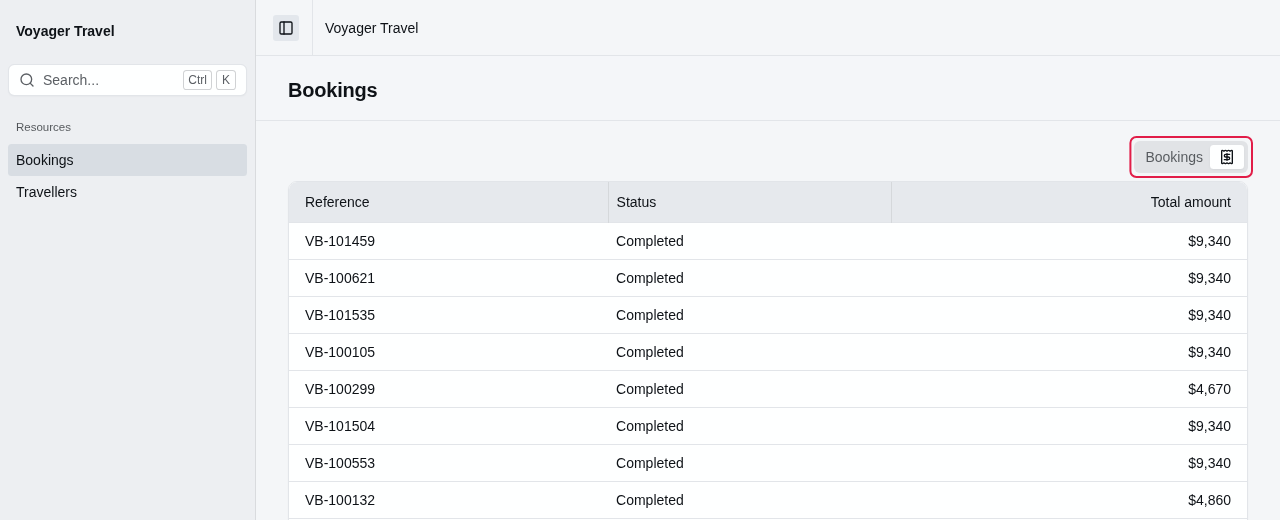
Icon | The name of a Lucide icon that the switcher displays in the segment. When you don't set an icon, the switcher displays the title instead. |
The example below gives the Finance table a title and a receipt icon:
resource.Index(index =>
{
    index.AddTable("bookings", table =>
    {
        // ...
    });
    index.AddTable("finance", table =>
    {
        table.Title = "Finance";
        table.Icon = "receipt";
        table.Columns(columns => columns.Add(booking => booking.TotalAmount, column =>
            column.UseDisplay<NumberDisplay>(number => number.Format = "C0")));
    });
});
Ignoring the search or the scopes
The search and scopes you configure on the index page applies to all layouts. A layout can opt out of the search and scopes by calling IgnoreSearch() or IgnoreScopes() in the layout builder:
index.AddPartial("summary", "_BookingSummary", summary =>
{
    summary.IgnoreSearch();
    summary.IgnoreScopes();
});
When a layout opts out, the search and scopes are not displayed when the layout is active and will not be applied to the layout's data. The search and the selected scope persists in the URL, so they apply again when users switch back to another data layout.
Loading custom data
By default, layouts display the data from the resource. You can however, display custom data by implementing a data layout handler. For example, on the booking resource, a layout may want to display the revenue per destination calculated from the bookings.