Tables
List a resource's records in a table on the index page
Introduction
A table layout lists the records of a resource in a grid on the index page. You can add a table by calling AddTable() on the index page builder, passing the table's key and a callback that configures the table.
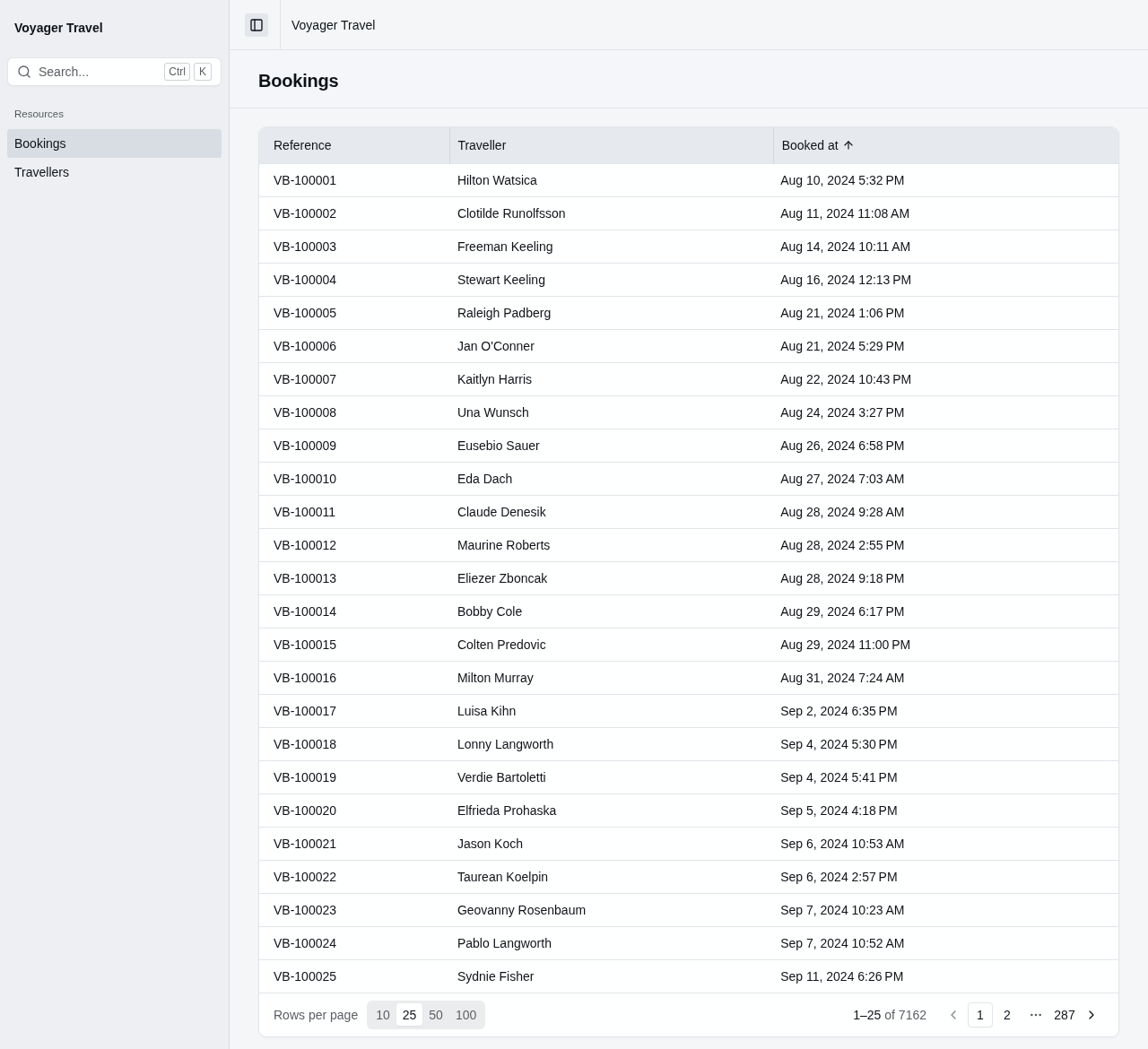
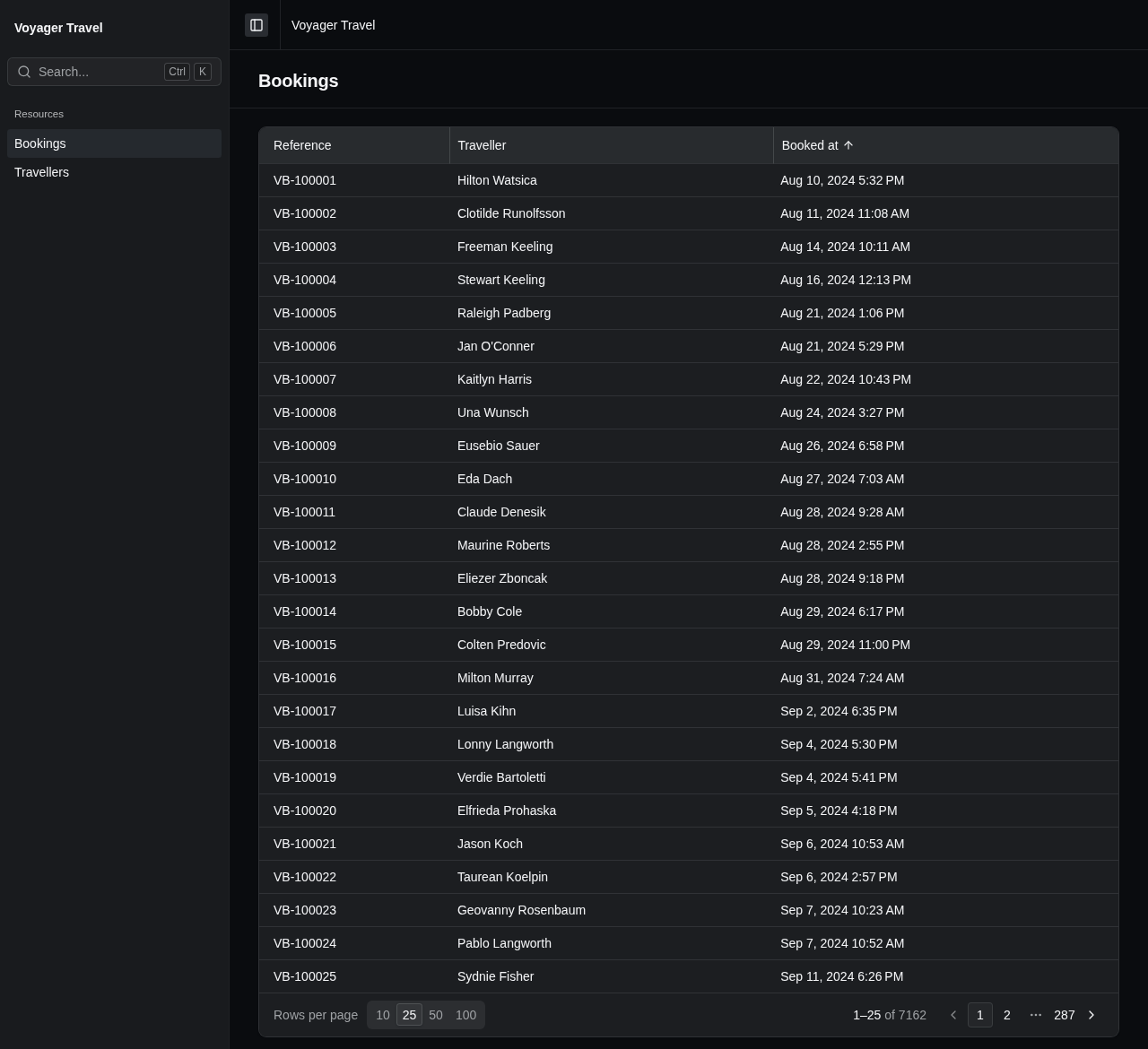
The example below adds a bookings table with three columns, a default sort, and pagination:
resource.Index(index => index.AddTable("bookings", table =>
{
    table.Columns(columns =>
    {
        columns.Add(booking => booking.Reference);
        columns.Add(booking => booking.Traveller);
        columns.Add(booking => booking.BookedAt, column => column.Sortable());
    });
    table.DefaultSortBy(booking => booking.BookedAt);
    table.EnablePaging();
}));
The key uniquely identifies the table layout among other data layouts configured for the resource. You can find out more about configuring a table in the following documentation:
- Columns explains how you can define and configure columns for the table.
- Sorting and paging lets users sort the table by a column and page through large lists of data.
- Row details allow users to expand a row to display additional information related to the record.
- Inline editing allows users to edit and add records inside the table without navigating to a separate page.
Row actions
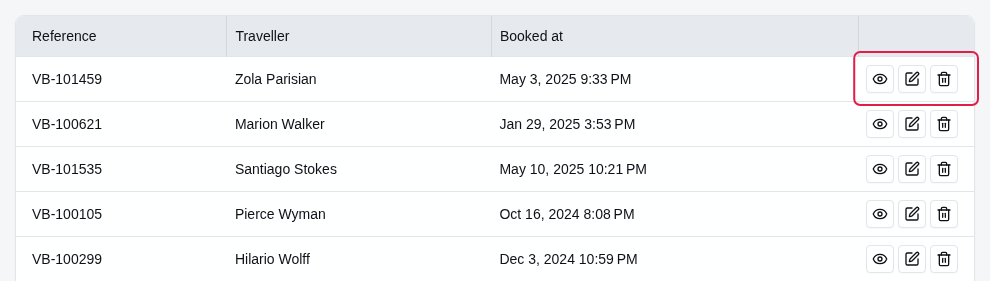
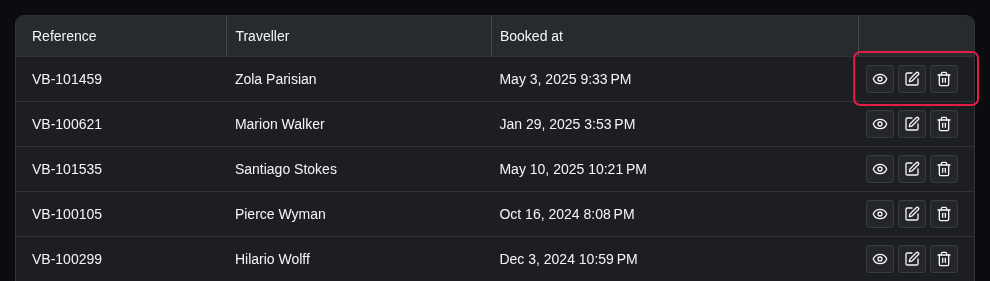
Each row may display a view, edit or delete action, depending on whether you've enabled the view page, the edit page or the delete action. These are enabled by calling the AllowView(), AllowEdit() or AllowDelete() methods on the resource builder.
Hiding row actions
To hide an action in a table, call RowActions() on the table builder and set the action's property to false. The example below hides the delete action in the bookings table:
resource.Index(index => index.AddTable("bookings", table =>
{
    table.Columns(columns => columns.Add(booking => booking.TotalAmount));
    table.RowActions(actions => actions.Delete = false);
}));
You can set View, Edit and Delete. Setting an action to true doesn't display an action that isn't enabled on the resource. Setting Edit to false also turns off inline editing for the table.