Sorting and paging
Sort the grid by its columns and split it into pages
Enable sorting for a column
You can enable sorting for a column by calling Sortable() on the column builder, allowing users to sort the data in the grid by that column's value. Clicking the header sorts the grid in ascending order. Clicking it again sorts in descending order.
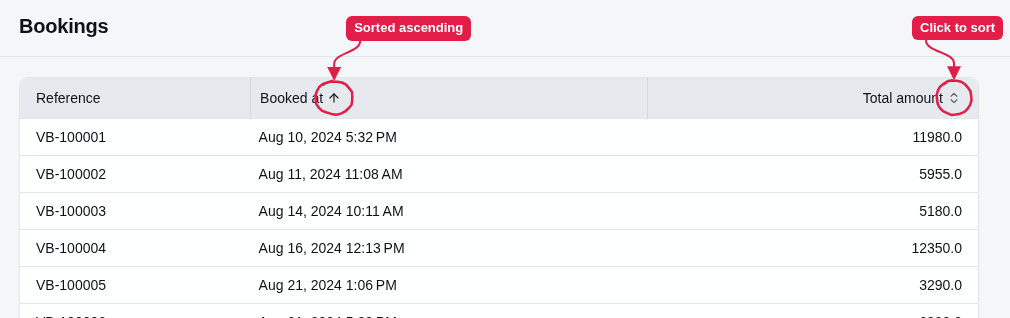
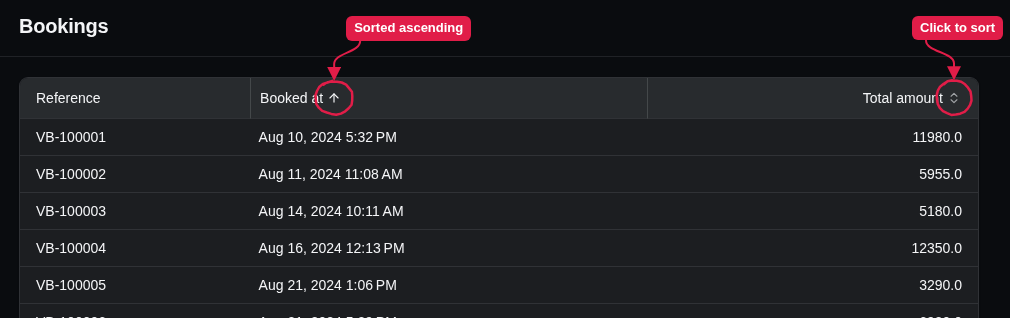
The example below makes the booking date and total amount columns sortable.
resource.Index(index => index.AddTable("bookings", table =>
{
    table.Columns(columns =>
    {
        columns.Add(booking => booking.Reference);
        columns.Add(booking => booking.BookedAt, column => column.Sortable());
        columns.Add(booking => booking.TotalAmount, column => column.Sortable());
    });
}));
Sorting by a different value
By default, a column will sort by the property it is bound to. You can sort by a different property by passing a sort expression when calling Sortable(). In the example below, the column is bound to the Traveller property, but sorting is based on the traveller's last name.
columns.Add(booking => booking.Traveller, column =>
    column.Sortable(booking => booking.Traveller.LastName));
Setting the default sort
You can specify the default sort for a table by calling DefaultSortBy() on the table builder. Call DefaultSortByDescending() to sort in descending order instead. In the example below, the data is sorted by the departure start date.
table.DefaultSortBy(booking => booking.Departure.StartDate);The default sort must be on a sortable column. If it isn't, StellarAdmin ignores the default sort and reports a configuration problem.
When no default sort order is specified, StellarAdmin sorts EF Core resources by their key.
Enabling pagination
A table displays all records for a resource unless you call EnablePaging() to split the records into pages.
table.EnablePaging();By default, each page will display 25 records, and users can switch the number of records per page between 10, 25, 50 or 100 records per page.


Changing the page sizes
The default page size can be changed using the PageSize property. Use the PageSizes array to change the page sizes available to the user.
table.EnablePaging(paging =>
{
    paging.PageSize = 20;
    paging.PageSizes = [20, 50, 100];
});
Sorting and paging a custom data source
When using a custom data source, the data source must implement sorting and pagination. StellarAdmin passes the requested sorting and pagination to the ListAsync() method:
request.Sort.Field is the name of the sorted column, and request.Sort.Selector is its sort expression, such as supplier => supplier.Name.
The example below sorts suppliers by name, and returns only the records for the requested page.
if (request.Sort is { Field: nameof(Supplier.Name) } sort)
    suppliers = sort.Direction == ResourceSortDirection.Ascending
        ? suppliers.OrderBy(supplier => supplier.Name).ThenBy(supplier => supplier.Code)
        : suppliers.OrderByDescending(supplier => supplier.Name).ThenBy(supplier => supplier.Code);

var all = suppliers.ToList();
var page = request.Paging is { } paging
    ? all.Skip((paging.Page - 1) * paging.PageSize).Take(paging.PageSize).ToList()
    : all;

return new ResourceListResult<Supplier>(page, all.Count);
Return the total number of records with the page, as all.Count does above, so that the grid can display how many pages there are.