Inline editing
Edit and add records in the grid
Inline editing allows users to edit records inline in the grid without navigation to another page. The works well with resources that contains only around 2 to 4 fields and allows for rapid data entry.
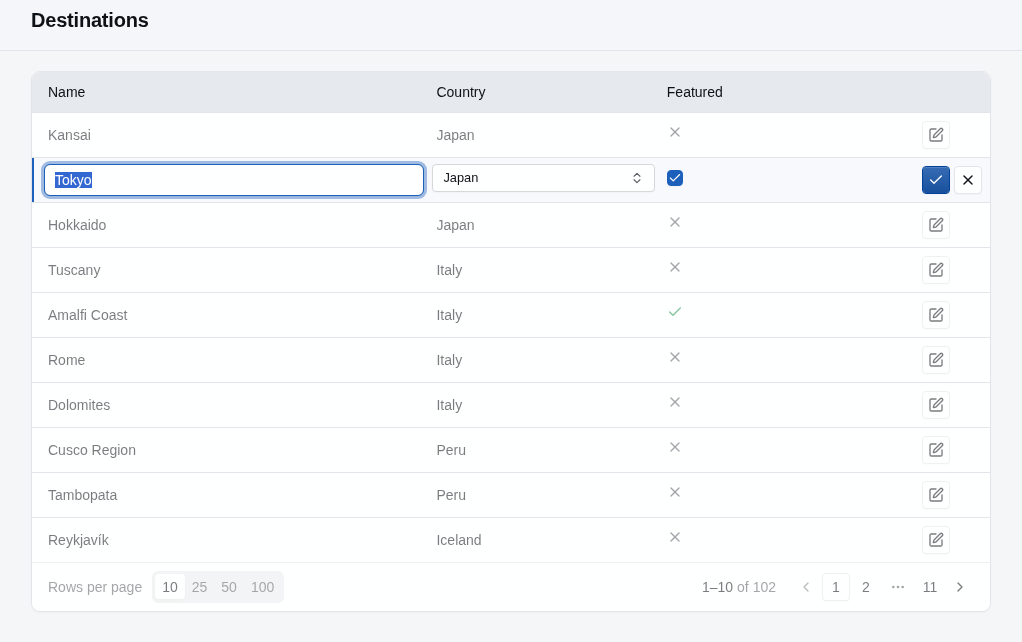
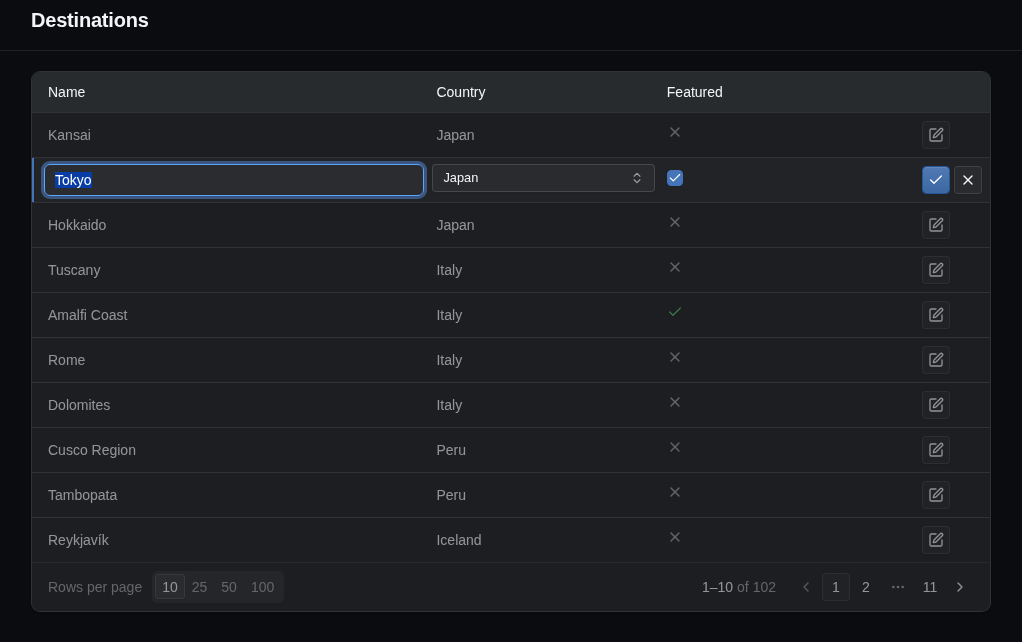
To edit records inline, call EnableInlineEditing() on the table builder. The row edits the fields of the edit page, so the resource must also call AllowEdit(). The example below edits the name, country and featured flag of a destination inline:
using StellarAdmin.Resources;

admin.AddEfCoreResource<Destination>(resource =>
{
    resource.Index(index => index.AddTable("destinations", table =>
    {
        table.Columns(columns =>
        {
            columns.Add(destination => destination.Name);
            columns.Add(destination => destination.Country!.Name, column =>
            {
                column.Title = "Country";
                column.EditsField(destination => destination.CountryId);
            });
            columns.Add(destination => destination.IsFeatured);
        });
        table.EnableInlineEditing();
    }));

    resource.AllowEdit(edit => edit.Fields(fields =>
    {
        fields.Add(destination => destination.Name);
        fields.Add(destination => destination.CountryId);
        fields.Add(destination => destination.IsFeatured);
    }));
});
When the user clicks a row's edit action, the row's cells change to editors, and Save and Cancel buttons replace the row actions. Press Enter in an input, or Ctrl+Enter (Command+Enter on a Mac) in any field, to save the row. Press Esc to cancel the edits.
Configuring the edited row
You configure the edited row using the inline edit builder. By default, other rows are dimmed once you start editing an inline row. The example below keeps the rest of the page usable while a row is edited.
table.EnableInlineEditing(inline =>
{
    inline.DimOtherRows = false;
});| Setting | Description |
|---|---|
DimOtherRows | Determines whether the user is prevented from editing other rows while editing a row inline. When true, the default, StellarAdmin dims and locks the rest of the page while the row is edited. When false, editing another row cancels the first one. |
AfterSave | Determines the grid's behaviour when a row is saved. ReloadGrid (the default) will reload the entire grid after saving a record. This may be jarring to the user as the record may disappear from the page due to sorting or filtering rules. You can prevent this by using KeepInPlace. |
Matching fields to columns
Since the grid's columns and the edit page's fields are defined independently, you need to take care to ensure that the index columns and the edit fields match.
When the inline editing mode is enabled, StellarAdmin attempts to match each field in the edit form with a column mapped to the same field. The editor for the field is then displayed in the matching grid column. A column without a matching edit field displays its value and the user won't be able to edit it.
When a column displays a different property than the field it edits, such as the country's name for the CountryId field, call EditsField() on the column to name the field.
columns.Add(destination => destination.Country!.Name, column =>
{
    column.Title = "Country";
    column.EditsField(destination => destination.CountryId);
});
If a field doesn't have a column, StellarAdmin turns off inline editing for the table, because saving the row could leave out that field's value. The table then links to the edit page instead. It reports a configuration problem that names the field.
Use inline editing for adding records
You can also enable inline creation of new records in the grid by calling EnableInlineCreate() on the table builder. The new row uses the fields of the create page, so the resource must also call AllowCreate().
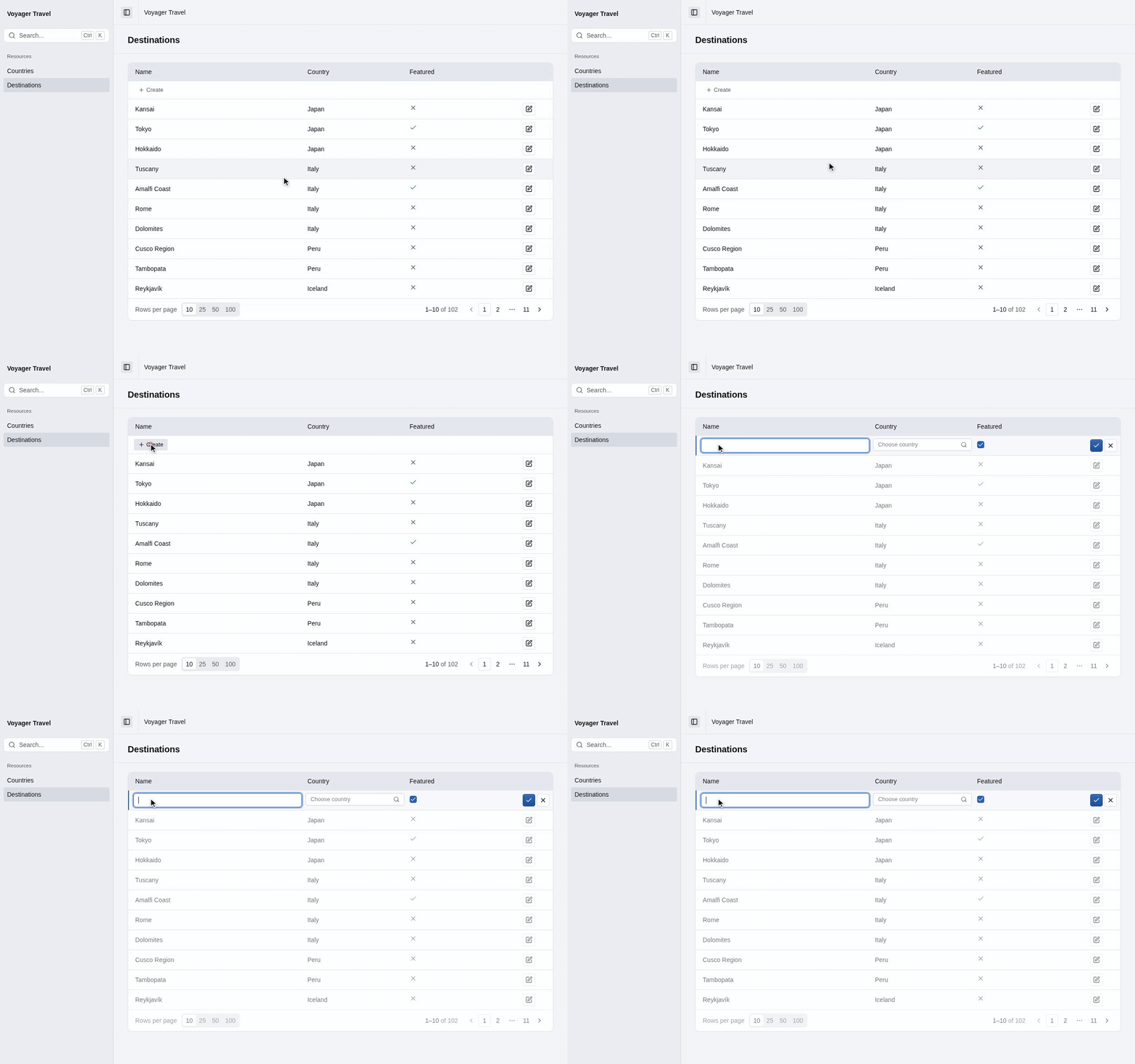
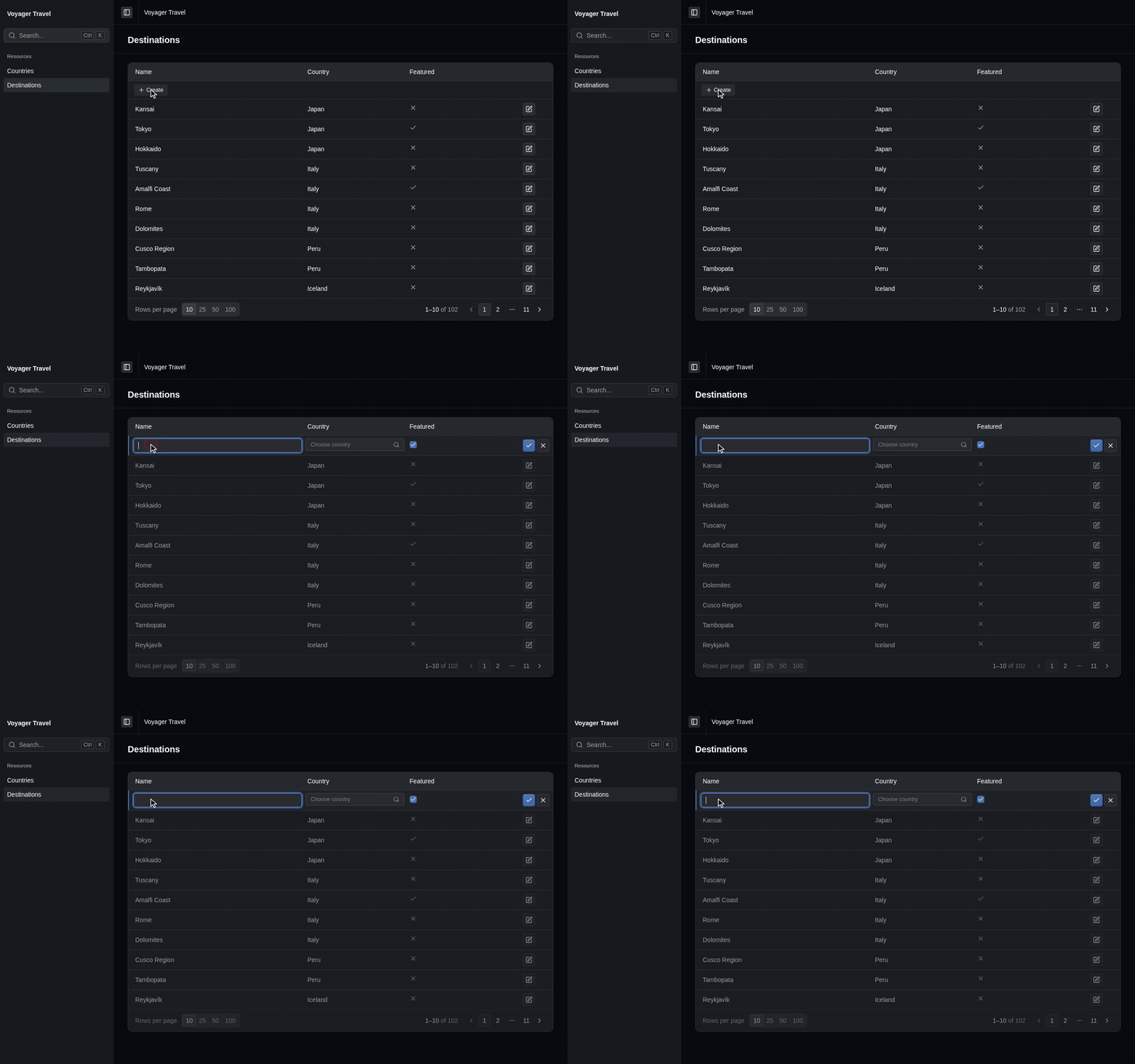
The example below enables adding new records via an inline row and removes the Create button from index page header in favour of an inline button directly on the grid. It also initializes each new record with the specified default values using UseFactory().
resource.Index(index => index.AddTable("destinations", table =>
{
    // ...
    table.EnableInlineCreate(inline =>
    {
        inline.AddButton = InlineAddButton.Grid;
    });
}));

resource.AllowCreate(create =>
{
    create.Fields(fields =>
    {
        fields.Add(destination => destination.Name);
        fields.Add(destination => destination.CountryId);
        fields.Add(destination => destination.IsFeatured);
    });
    create.UseFactory(() => new Destination { Name = "", IsFeatured = true });
});
Every [Required] property of the model must have a field. If one doesn't, StellarAdmin turns off adding records inline for the table, and reports a configuration problem. The table then links to the create page instead.
The EnableInlineCreate() method returns a builder that allows you to configure the behaviour of the row.
| Setting | What it does |
|---|---|
Position | Adds the new row at the Top of the current page (the default) or at the Bottom. |
AddButton | Specifies whether the Create button must be displayed in the page Header as usual, in a row of the Grid, or in Both (the default). |
DimOtherRows | When true (the default), StellarAdmin dims and locks the rest of the page while the row is open. When false, opening another row cancels the first one. |
AfterSave | Determines the grid's behaviour after a new row is saved. ReloadGrid reloads the entire grid, but this can be jarring to the user as the sorting and filtering rules may mean the record disappears from its position.KeepInPlace keeps displaying the new record in the same position that the new row appeared. |
To speed up data entry, call EnableAddAnother() on the create page. The new row then has a third button, which saves the row and opens another new row. Pressing Ctrl+Shift+Enter (Command+Shift+Enter on a Mac) does the same.
Choosing what happens after a save
AfterSave sets what the grid does after a row is saved:
ReloadGridreloads the current page of the grid, with its search, scope, sort and page, so that the saved row moves to where it belongs. If the saved row isn't on the page any more, a message says so.KeepInPlacekeeps the saved row where it is until the grid next reloads. It suits entering several records quickly into a short list.
Editors that work in a cell
Not every editor works in a cell:
| Editor | Method | Works in a cell |
|---|---|---|
| Text input, including number, email and the other single-line inputs | UseTextInputEditor() | Yes |
| Select | UseSelectEditor() | Yes |
| Checkbox | UseCheckboxEditor() | Yes |
| Switch | UseToggleEditor() | Yes |
| Date input | UseDateInputEditor() | Yes |
| Date and time input | UseDateTimeInputEditor() | Yes |
| Time input | UseTimeInputEditor() | Yes |
| Segmented control | UseSegmentedControlEditor() | Yes |
| Lookup | UseLookupSheetEditor() | Yes |
| List | UseListEditor() | Yes |
| Dictionary | UseDictionaryEditor() | Yes |
| Image | UseImageEditor() | Yes |
| Icon | UseIconEditor() | Yes |
| Textarea | UseTextareaEditor() | No |
| Rich text | UseRichTextEditor() | No |
| Radio group | UseRadioGroupEditor() | No |
| Checkbox group | UseCheckboxGroupEditor() | No |
| Toggle group | UseToggleGroupEditor() | No |
| Slider | UseSliderEditor() | No |
| One-time code | UseOneTimeCodeEditor() | No |
| Multi-lookup | UseMultiLookupSheetEditor() | No |
In Development, a cell with an editor that doesn't work in a cell displays an error that names the missing template. Saving the row leaves the value of that field unchanged.
A custom editor works in a cell once you add a template for it to EditorTemplates/Compact/.
Changing the labels
To change the labels and messages of inline rows, set these properties in the Index() callback:
| Property | Default |
|---|---|
SaveLabel | "Save" |
CancelLabel | "Cancel" |
CreatedMessage | The singular label and "added", such as "Destination added" |
SavedMessage | The singular label and "saved", such as "Destination saved" |
NotShownMessage | "It isn't on this page with the current search, scope and sort." |
To change the defaults for every resource, see global labels.